# Settings
This is the settings tabs where you can configure some account specific options.
#### Multi-Factor Authentication
If you want to provide the maximum security to your account, specially if you are using a user/password based account, you should enable MFA.
MFA will require a separate hardware device when the system detects that the risk is higher than normal, for example if you are trying to log in for a different location that you usually do.
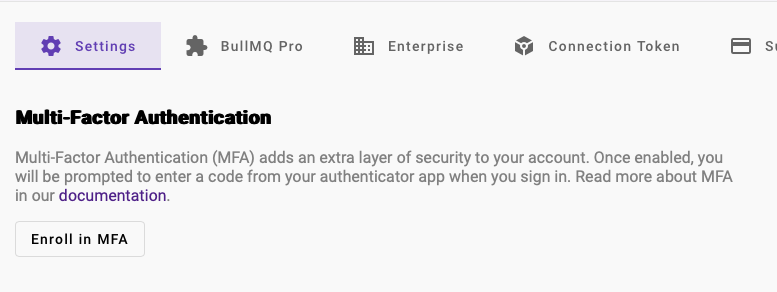
Start by clicking on the "Enroll in MFA" button.
You will be asked if you want to enable it for sure. Note that once enable it cannot be easily disabled, contact support if you need to do it.
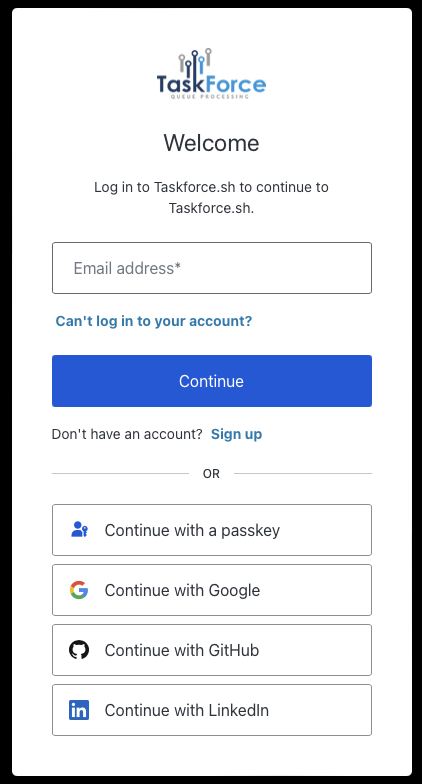
You will be prompted to log-in again, but this time you will be able to configure MFA.
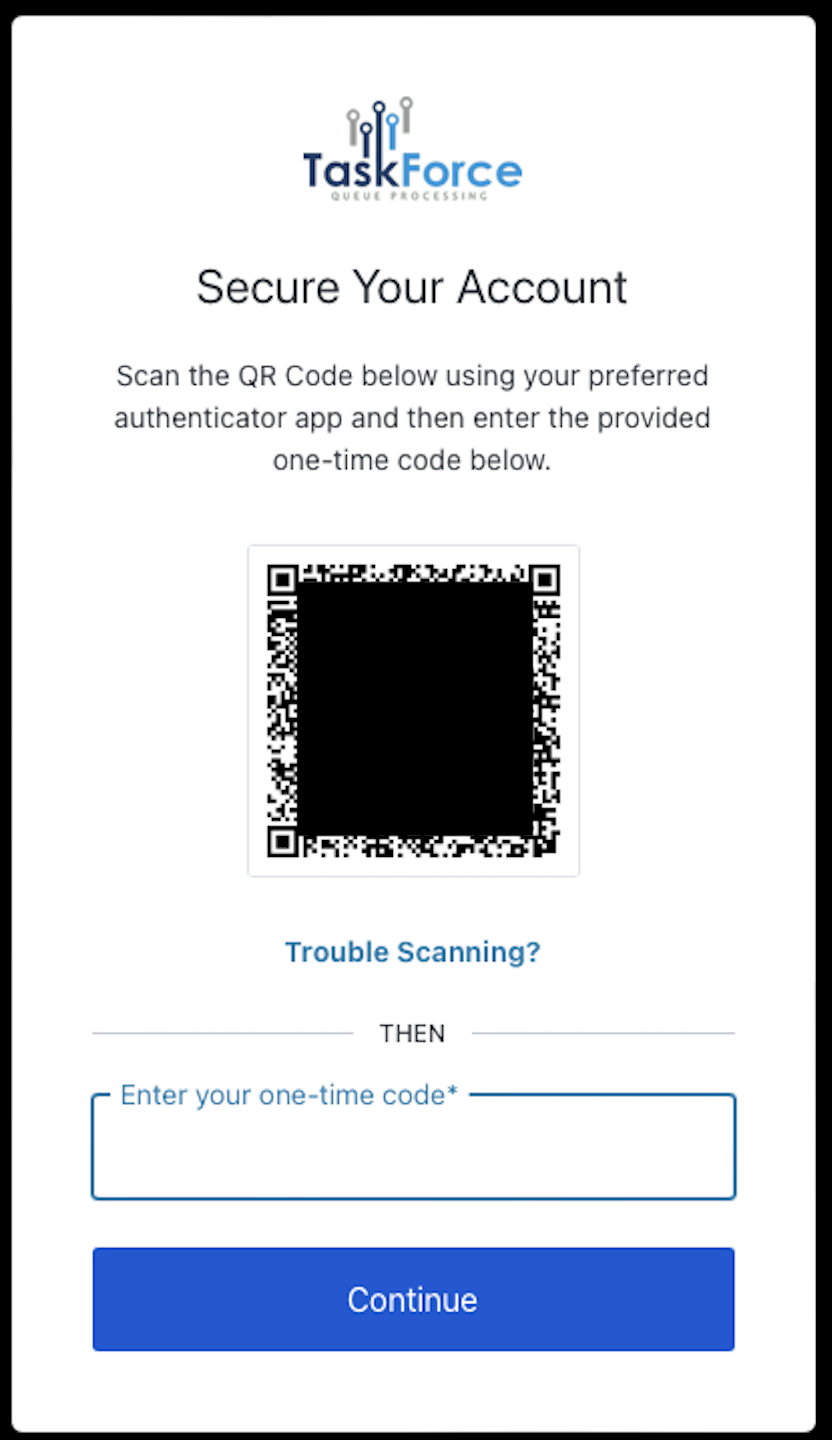
For the next step you are going to need your Authenticator App in any mobile device:
After inserting the OTP code you will be all set, and next time you login you will need to have your authenticator app.
{% hint style="danger" %}
It is highly recommended to remember the device for 30 days if you are login in from a trusted PC or Mac.
{% endhint %}