Billing managers
The person who owns a Taskforce.sh subscription is often not the person who pays for it. A developer or team lead uses the subscription: they create the organization, connect queues and create BullMQ Pro npm tokens. Someone in finance takes care of invoices and payment.
A billing manager is that second person. You stay the account owner: everything the subscription includes (connections, BullMQ Pro tokens, on-premises licenses) remains on your account. The billing manager can manage its billing, and nothing else.
| Account owner | Billing manager | |
|---|---|---|
| Use the subscription: connections, organizations, BullMQ Pro tokens, licenses | ✓ | |
| See queues, teams and connections | ✓ | |
| Billing details, VAT number and payment cards | ✓ | ✓ |
| Invoices, and paying open or failed invoices | ✓ | ✓ |
| Change plans and quantities, cancel subscriptions | ✓ | ✓ |
| Assign or change the billing manager | ✓ |
Each account can have one billing manager.
Assign a billing manager
You need a subscription before you can assign a billing manager.
Go to the Subscriptions tab of your account.
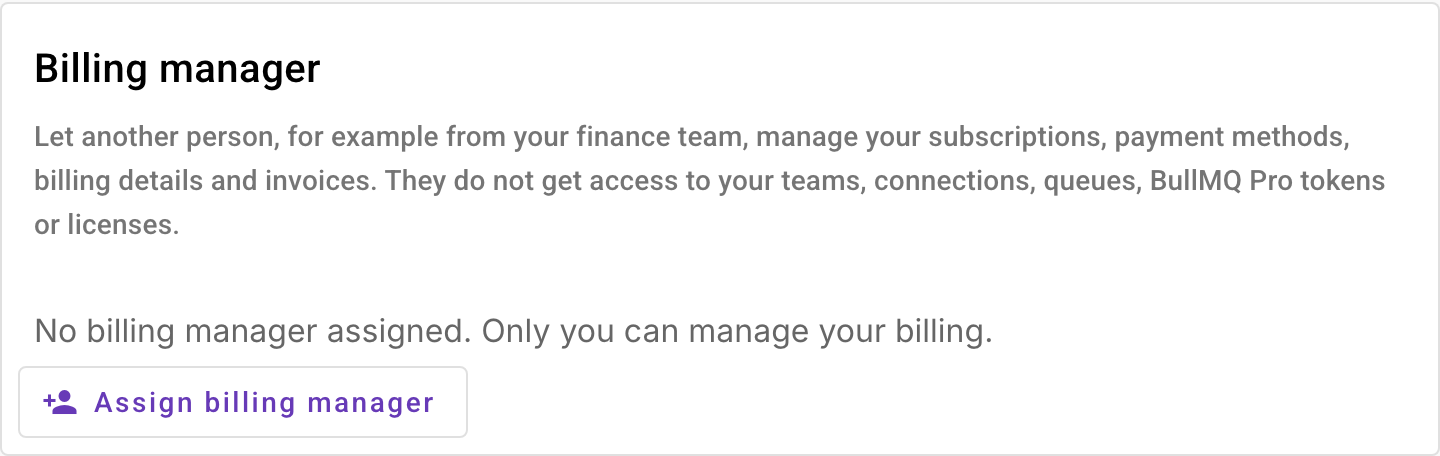
Scroll down to the Billing manager section and click Assign billing manager.
Enter the email address of the person and click Send invitation.
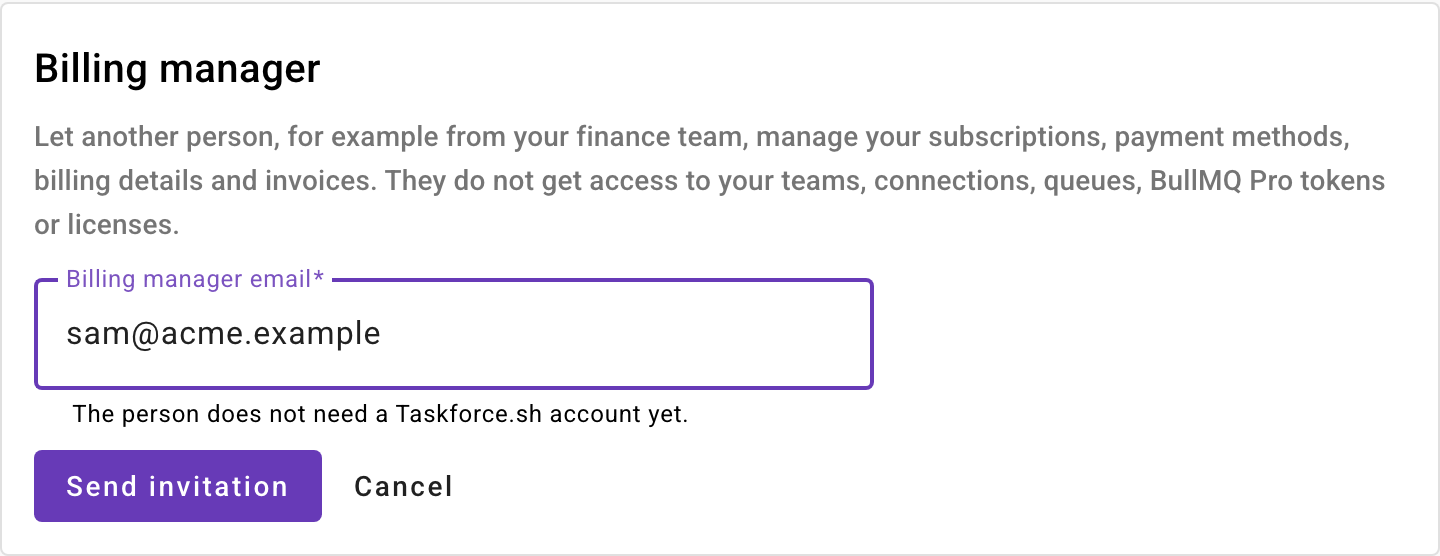
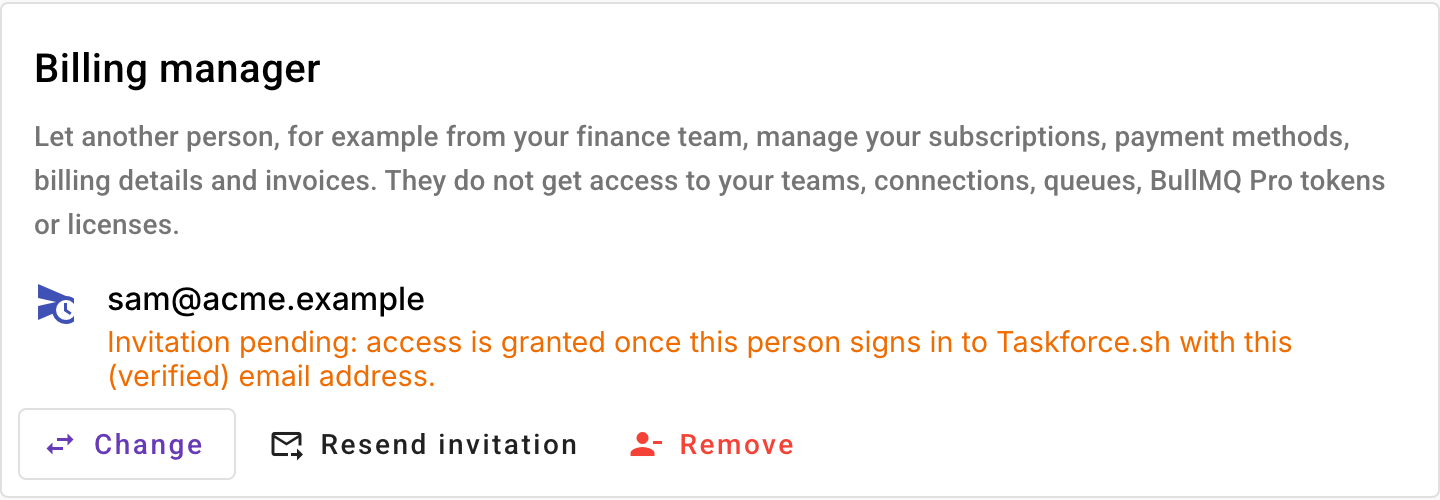
The person doesn't need a Taskforce.sh account yet. They receive an email inviting them to sign in, or to sign up with that email address.
Until they do, the invitation is shown as pending. Click Resend invitation if they didn't get the email.
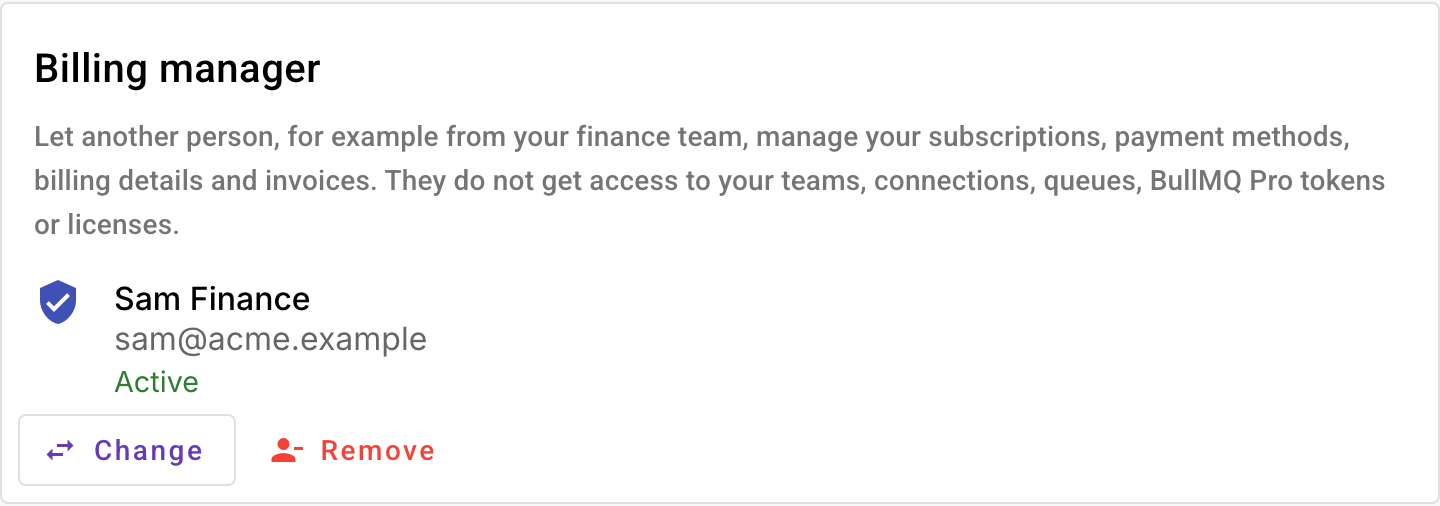
Once they have signed in with that email address, the billing manager is shown as Active.
INFO
For security, the invitation is only accepted once the billing manager's email address is verified. If they signed up with email and password, they need to open the verification email first.
Change or remove the billing manager
In the Billing manager section:
- Click Change and enter another email address to replace the billing manager.
- Click Remove to remove them.
In both cases the previous billing manager loses access immediately, and receives an email telling them. Nothing changes in your subscription.
Managing billing as a billing manager
When you are the billing manager of an account, the Subscriptions tab of your account shows a Billing account selector. The account you manage is selected by default, and a notice shows whose subscription you are managing.
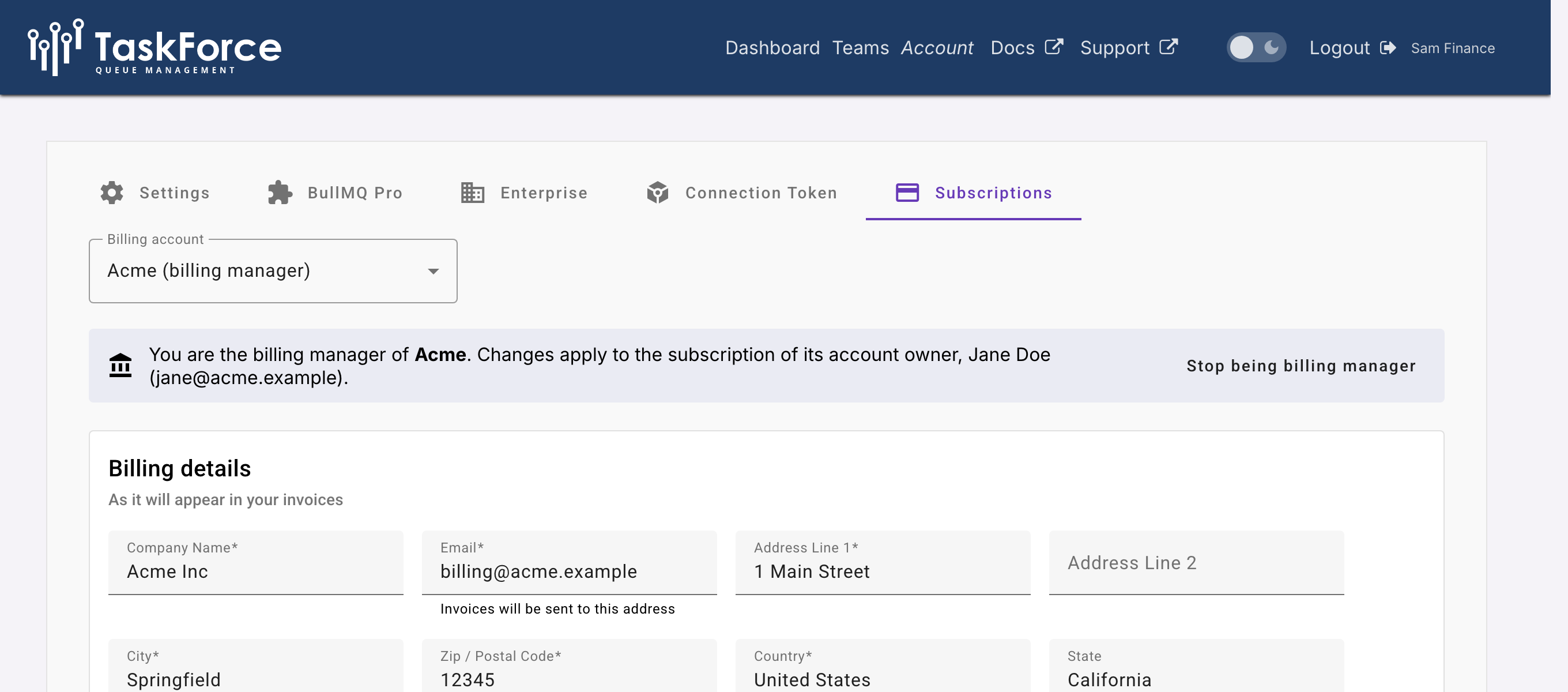
Everything on the page applies to that account: billing details, payment cards, plans, subscriptions and invoices. See Subscriptions and billing for how each of them works.
Select My account to go back to your own subscriptions, if you have any.
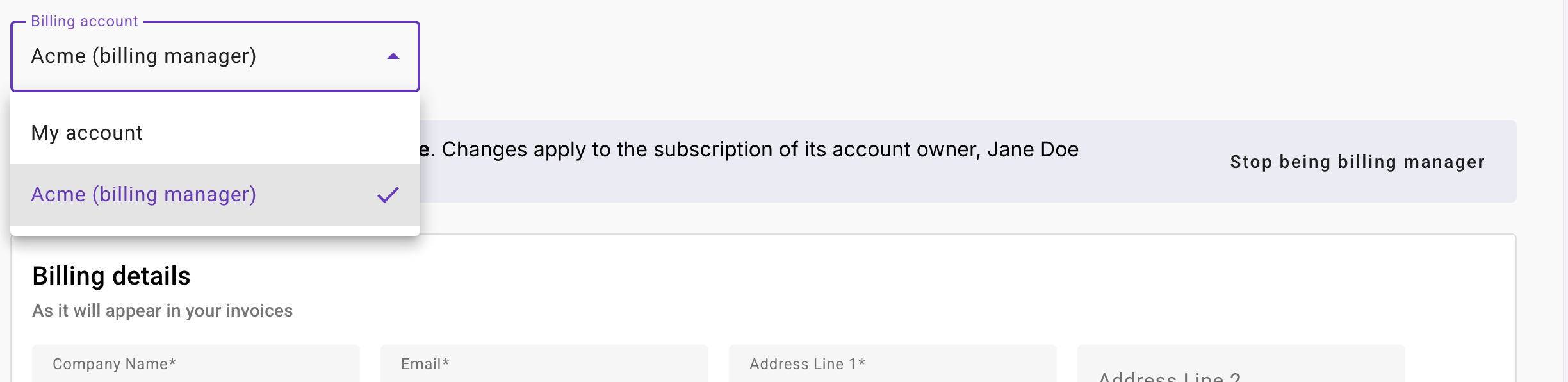
You don't get access to the account's teams, connections or queues, and it doesn't add anything to your own account.
Stop being the billing manager
Click Stop being billing manager in the notice at the top of the page. The account owner can assign someone else.
Waiting for email verification
If you were assigned as billing manager but your email address isn't verified yet, the Subscriptions tab shows this notice. Verify your email address, then reload the page.

Enterprise and custom subscriptions
For Enterprise plans and other subscriptions arranged with our team, we set up the subscription for you. Tell us:
- The email address of the account owner: the person who will use the subscription, for example create the organization and the BullMQ Pro tokens.
- Optionally, the email address of the billing manager.
Each of them receives an email when the subscription is ready. They don't need a Taskforce.sh account beforehand: the subscription is linked to their account when they sign in with that email address.
If your subscription is invoiced outside of Taskforce.sh, for example by bank transfer against a purchase order, the Subscriptions tab shows the notice below. You can still see your subscriptions there, but to change or cancel them, contact us at admin@taskforce.sh.
